Open RBXL File
Open RBXL file in Roblox Studio in 5 steps: install Studio, open your .rbxl or .rbxlx game from the File menu, press Play to test it, and publish to save.
Last updated:
Just follow these 5 steps. No coding needed; the first time takes about 15 minutes. This open RBXL file guide works the same on Windows and Mac.
These steps work for any Roblox place file. A .rbxl file and a .rbxlx file (the kind our site gives you) hold the same game: .rbxl is the compact binary version and .rbxlx is the text (XML) version. Roblox Studio opens both the same way.
Step 1: Install Roblox Studio and sign in
- Open the Roblox creator site
create.roblox.comin your browser, click Start Creating, and download Roblox Studio. - Double-click the download to install it. Studio opens when it is done.
- Sign in with your Roblox account. No account yet? Sign up for free at
roblox.comfirst, then come back and sign in.
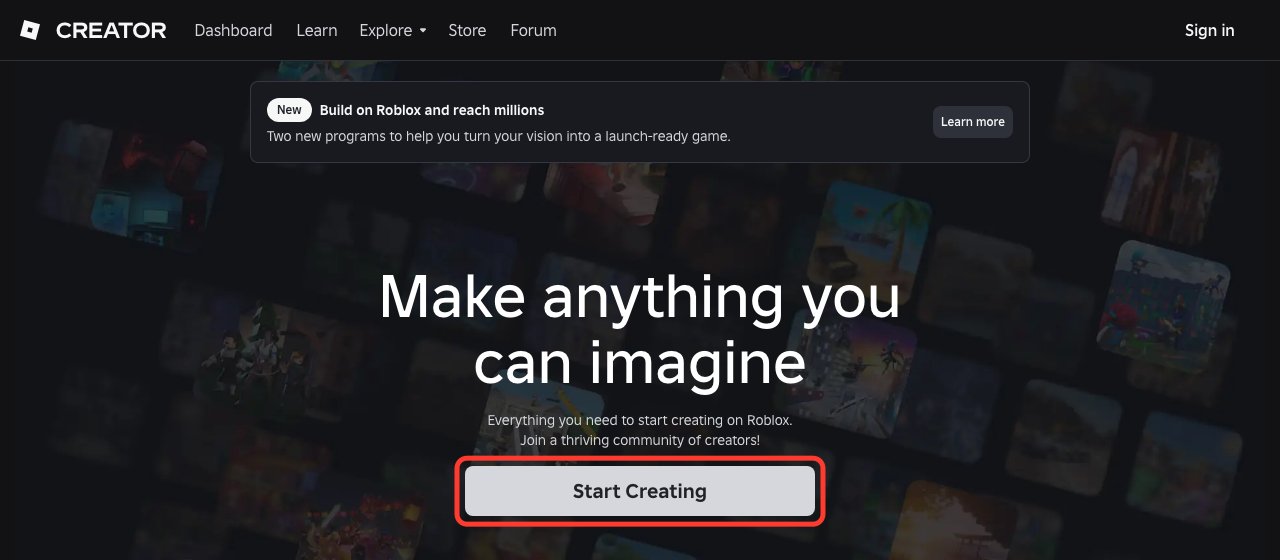
The Start Creating button is in the red box.
Step 2: Open the RBXL File in Roblox Studio
- On our site, click Download Studio file. You get a file ending in
.rbxlx, usually in your Downloads folder. - In Studio, click File → Open from File and pick that file.
- You can also just double-click the file and it opens in Studio.
Got a .rbxl file from somewhere else? Open it the same way: File → Open from File.
Once it is open you can see the map. Hold the right mouse button and drag to turn the view, and scroll to zoom.
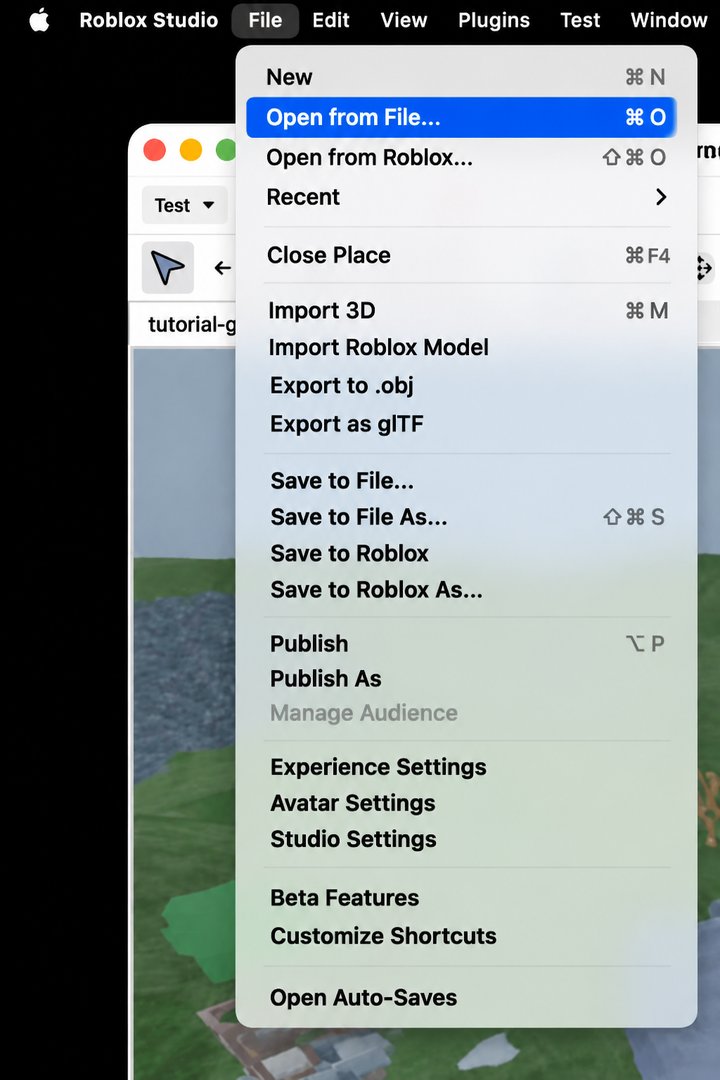
On a Mac, the File menu is in the menu bar at the very top of the screen.
Step 3: Press Play to try it
- Click the Play button (triangle icon) in the toolbar, or press
F5. - When you are done, click Stop (square icon) or press
Shift + F5to go back to editing.
Common keys:
WASD: walk;Space: jump; hold the right mouse button and drag: turn the camera.E: when you walk up to something you can use (a chest, door, NPC, fishing spot or car), a "Press E" prompt appears. PressE.- Left mouse button: attack or fire when you hold a weapon or tool.
F,Q,G,1to5: the game's own action keys. The bottom of the screen shows what each key does.R: play another round after a round ends.
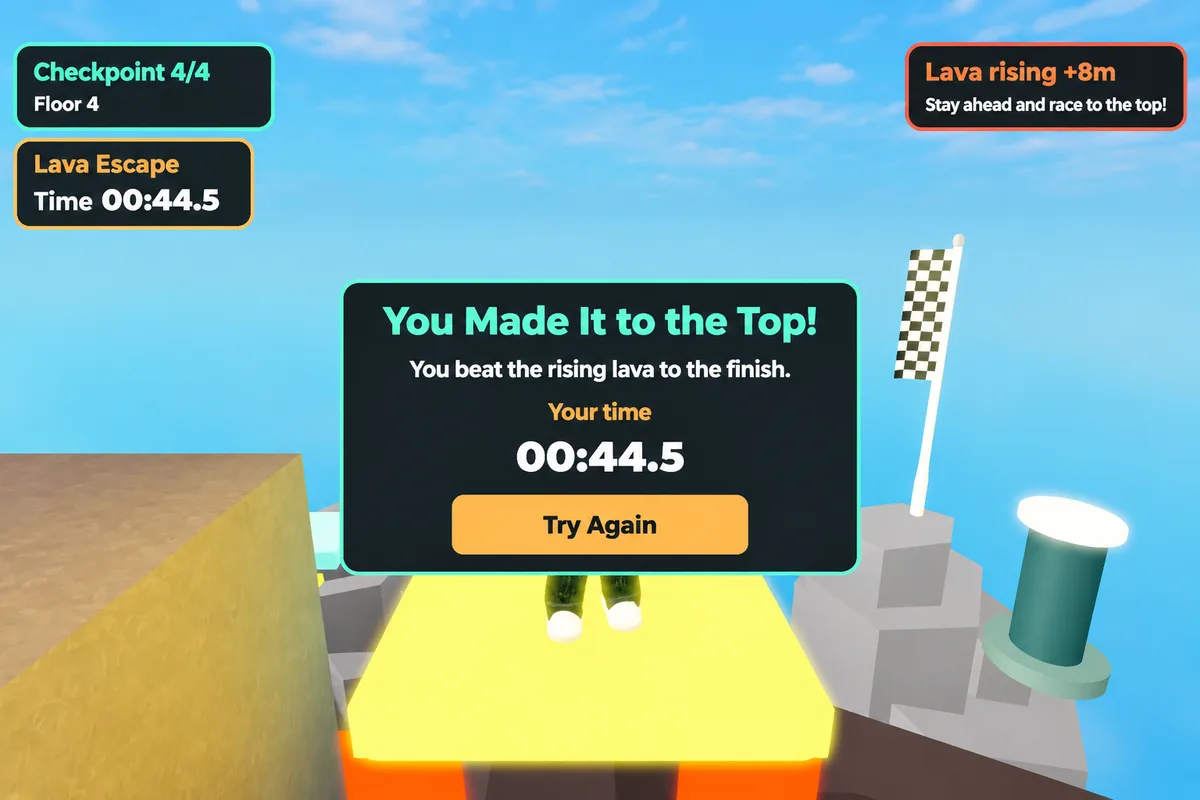
The picture shows a parkour game we made earlier, played in Studio and reaching the finish.

The left red box is Play (blue triangle) and the right one is Stop (red square).
Step 4: Saved progress needs a published game
If your game remembers coins, levels or other progress:
- Roblox only allows saving in published games. If you open the file in Studio and press Play, progress only lasts for that one session, and the game tells you once: "Saves last only this round: publish to Roblox to keep them".
- After you publish, saving works in the real game: leave and come back, and your progress is still there.
To publish: in Studio, click File → Publish. This window opens.
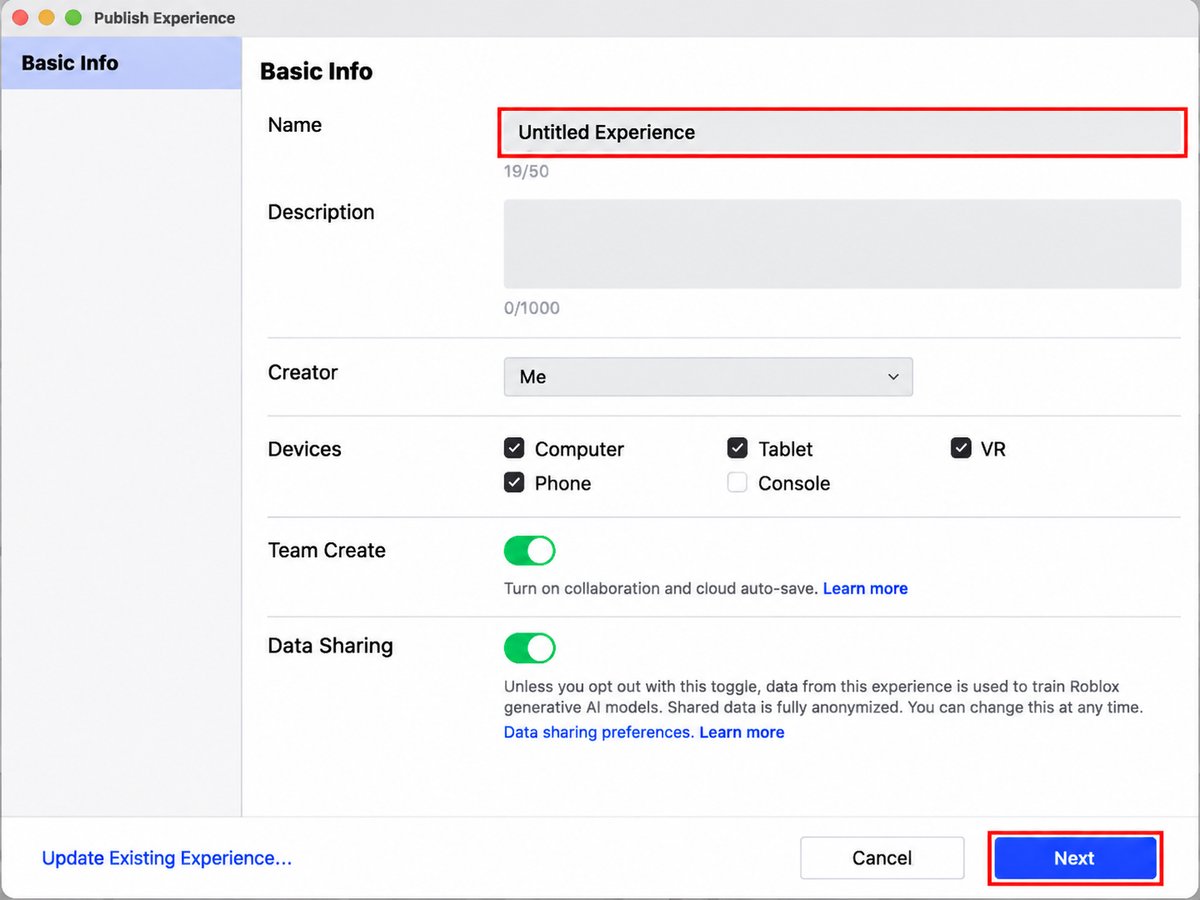
Type a name for your game in the top red box, then click Next in the red box at the bottom right. Studio uploads the game to your Roblox account. This takes a few seconds.
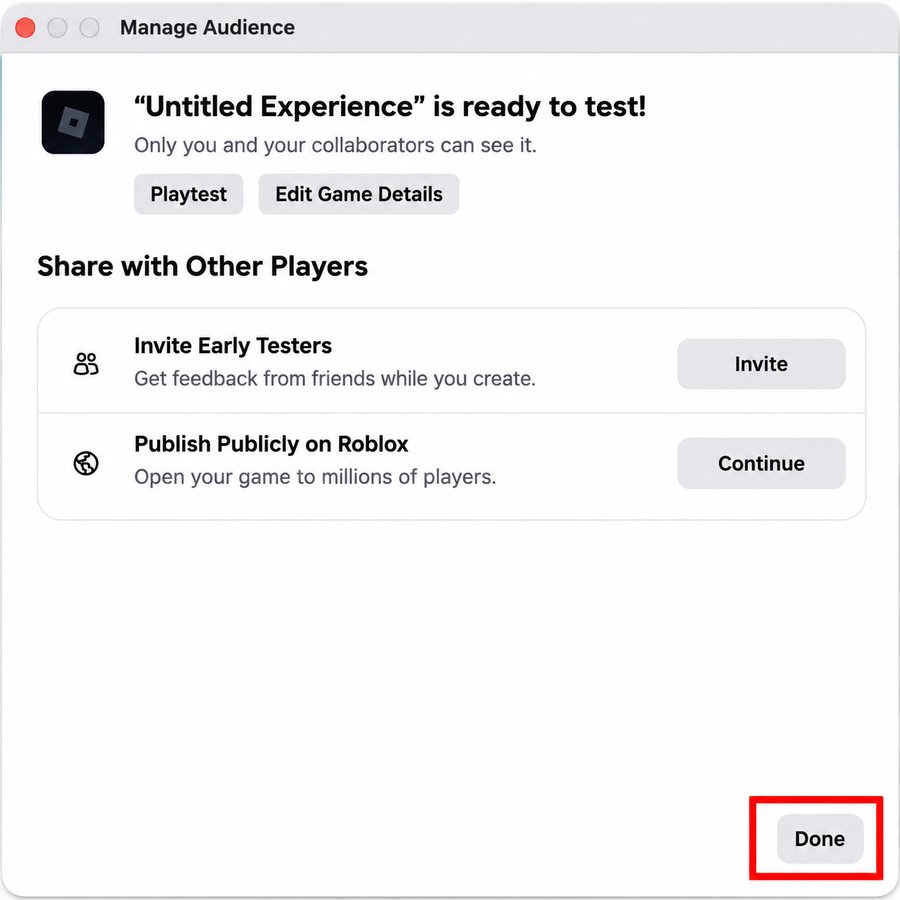
When the upload is done, this window says your game is ready to test. For now only you (and anyone you add as a collaborator) can see it, and saving progress already works. Click Done. When you want other players to join, open this window again with File → Manage Audience and click Continue next to Publish Publicly on Roblox.
Step 5: To keep changing it, go back to the website and just say what to change
- Changes you make yourself in Studio can't come back to the website. The website only knows the versions it made.
- To keep editing by chatting: open the same project on our site and say what to change, for example "give the monsters twice the health". When it is done, click Download Studio file again and open the new file in Studio.
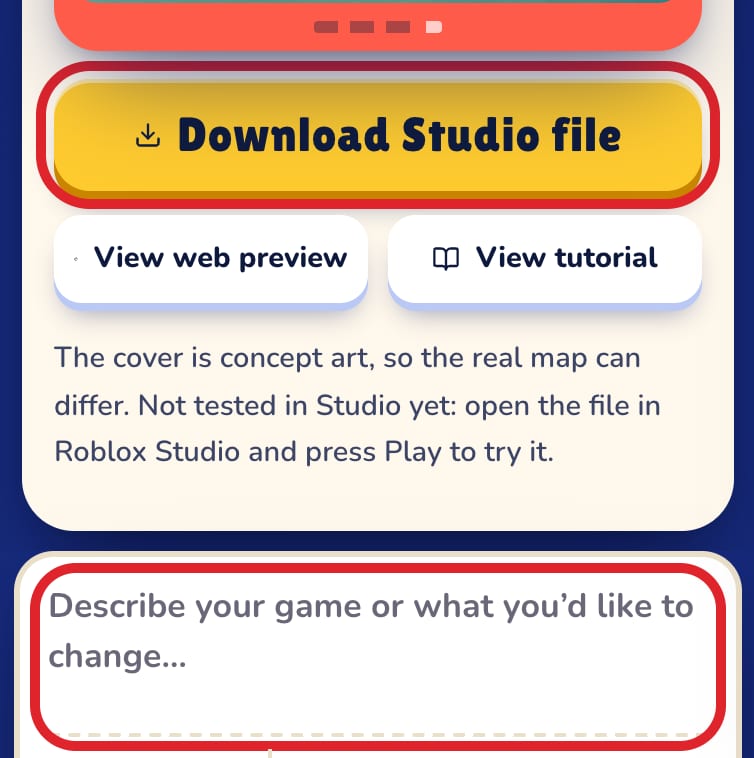
The bottom red box is the chat box: type what to change there. The top red box is the Download Studio file button: click it to download again after the change.
- The new file does not include anything you changed by hand in Studio.
- Want an older version? Restore it under History on the website first, then download.
Open RBXL File on Windows or Mac
Roblox Studio is a free app for Windows and Mac computers. The steps above are the same on both. Only two small things look different.
- The installer. On Windows the download is called
RobloxStudio.exe. On a Mac it isRobloxStudio.dmg. Double-click it to install. - The File menu. On Windows it sits at the top left of the Studio window. On a Mac it is in the menu bar at the very top of the screen.
Everything else, from Open from File to Play and Stop, works the same way.
How to Save RBXL to RBXLX (and Back)
Sometimes you need the other file type, for example when a tool only takes .rbxlx. You don't need a converter. Roblox Studio can save your game as either kind.
- Open your file in Studio with File → Open from File.
- Click File → Save to File.
- In the save window, give the file a name that ends in
.rbxlx(or.rbxl) and save it.
The game inside stays the same; only the format changes. A .rbxl file is smaller, and a .rbxlx file is bigger but is plain text. Saving to a file is also an easy way to keep a backup of your game on your own computer.
How to Add an RBXL File to an Existing Project
Already have a published game and want this file to be part of it? You don't copy anything by hand. You open the file and publish it into that game.
- Open the
.rbxlor.rbxlxfile in Studio. - Click File → Publish As. A window shows your games.
- Click the tile of the game you want.
- Then pick one:
- Add as a new place, then Create: the file becomes an extra area (a "place") inside that game.
- Choose a place that is already there, then Overwrite: the file replaces that place.
Overwrite replaces what is there now. Before you do it, open the old place and save a copy with File → Save to File, just in case.
Common Questions About RBXL Files
What is an RBXL file?
It is a Roblox place file: the whole game in one file, with the map, scripts and UI. .rbxl is the binary version and .rbxlx is the text (XML) version of the same thing.
How do I open an RBXLX file?
Exactly like an RBXL file. In Roblox Studio, click File → Open from File and pick the .rbxlx file.
Can I open an RBXL file without Roblox Studio?
To see the map and play the game, you need Roblox Studio. It is free and works on Windows and Mac. A .rbxlx file is text, so a text editor can open it too, but you only see lines of XML, not the game.
Can RBXL files have malware?
A place file can hold scripts. Roblox warns that scripts with scrambled or unreadable text can be a hidden backdoor into your game. Only open files from people you trust, and delete any model whose script looks like that.
Why won't my RBXL file open when I double-click it?
Your computer may not link the file type to Roblox Studio. Open Studio first, then use File → Open from File. If that fails too, update Roblox Studio and try again.